
Guided tour

Step inside Senflix.

Every screen of the app, explained step by step. From your first Short to your first payout.

Pick your seat

Screens are real captures of the app and Senflix Studio, with demo creators and playlists.

The viewer’s seat

Two seats, one stage.

Let’s start in the audience. Keep scrolling: the phone follows you and changes screen with each chapter.

  1. 01Chapter 1 · Viewer

    Arrival

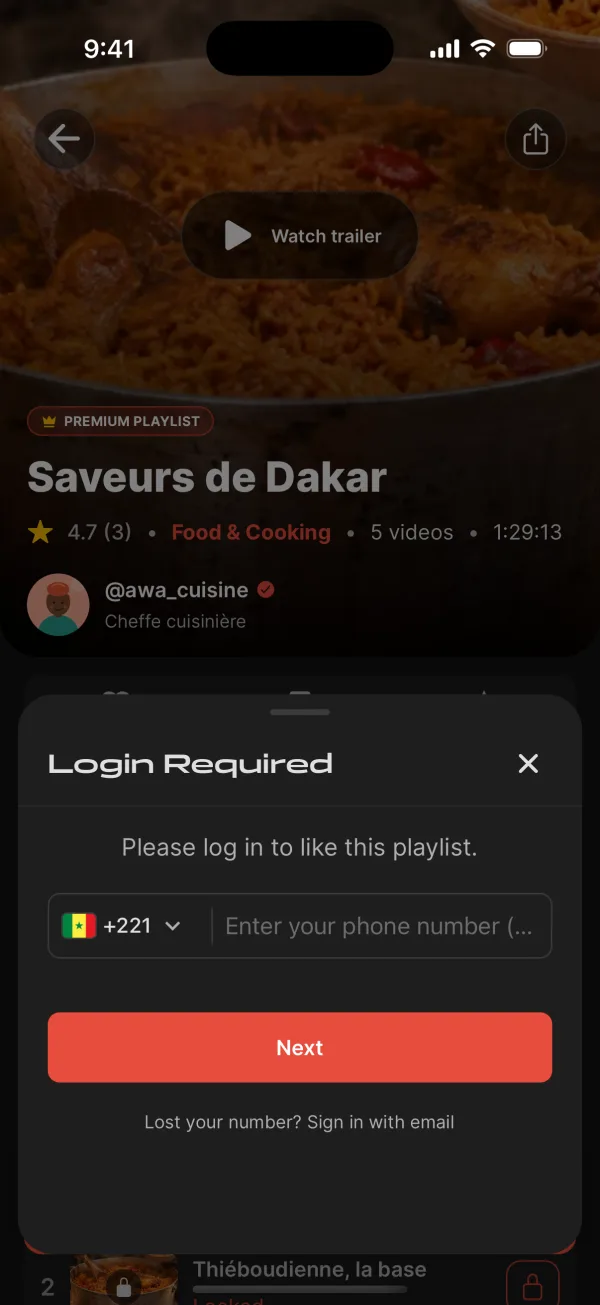
    On screen“Login Required”

    Open the app and you’re already in, no account needed.

    1. Login Required Only when an action needs your account.
    2. Phone or email Your phone number is enough; “Lost your number?” uses email.
    3. Next Once you’re in, the action you started picks up.
    Learn more
    • As a guest, the bottom bar offers Home, Categories, Shorts and Login.
    • You need an account to follow a creator, like, save or buy.

    Tip. A trailer or a few Shorts are enough to get the feel of it.
  2. 02Chapter 2 · Viewer

    Login

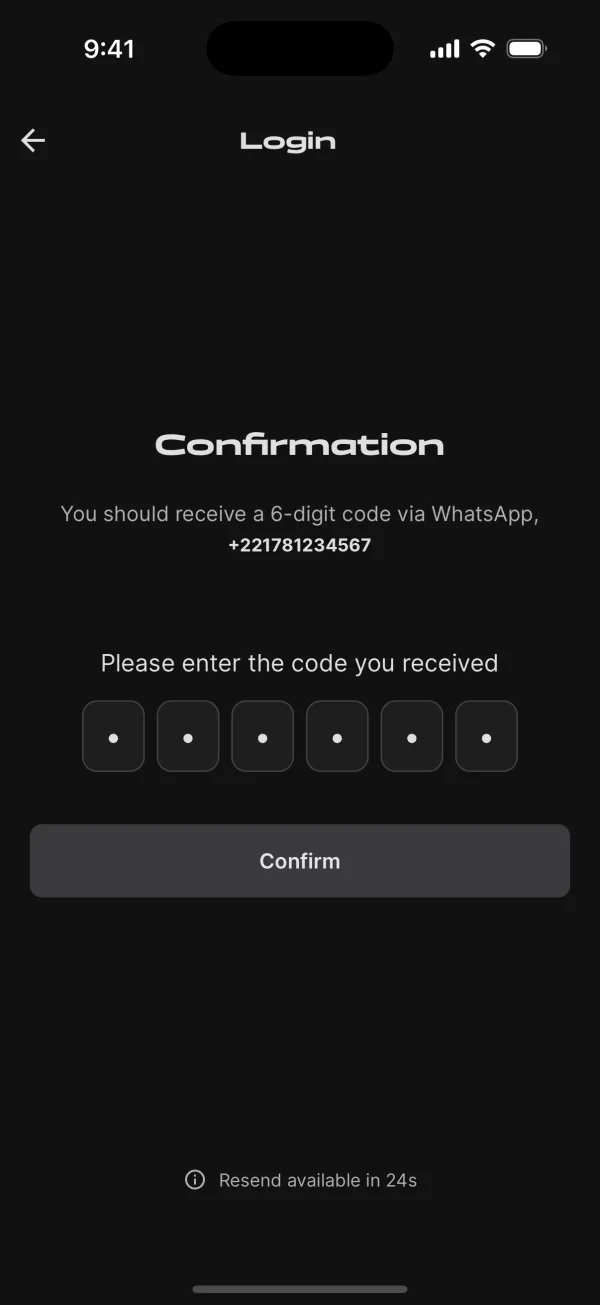
    On screen“Confirmation”

    No password: one code, and you’re in.

    1. Via WhatsApp The code arrives by WhatsApp, SMS or email.
    2. 6-digit code Type it in, then tap Confirm.
    3. Resend Nothing yet? Ask for a new code after 30 seconds.
    Learn more
    • Then turn on quick login with Face ID or your fingerprint.
    • Pick up to 5 interests to personalise Home, or tap “Skip for Now”.
    • Lost your number? Tap “Lost your number? Sign in with email”.
  3. 03Chapter 3 · Viewer

    Home

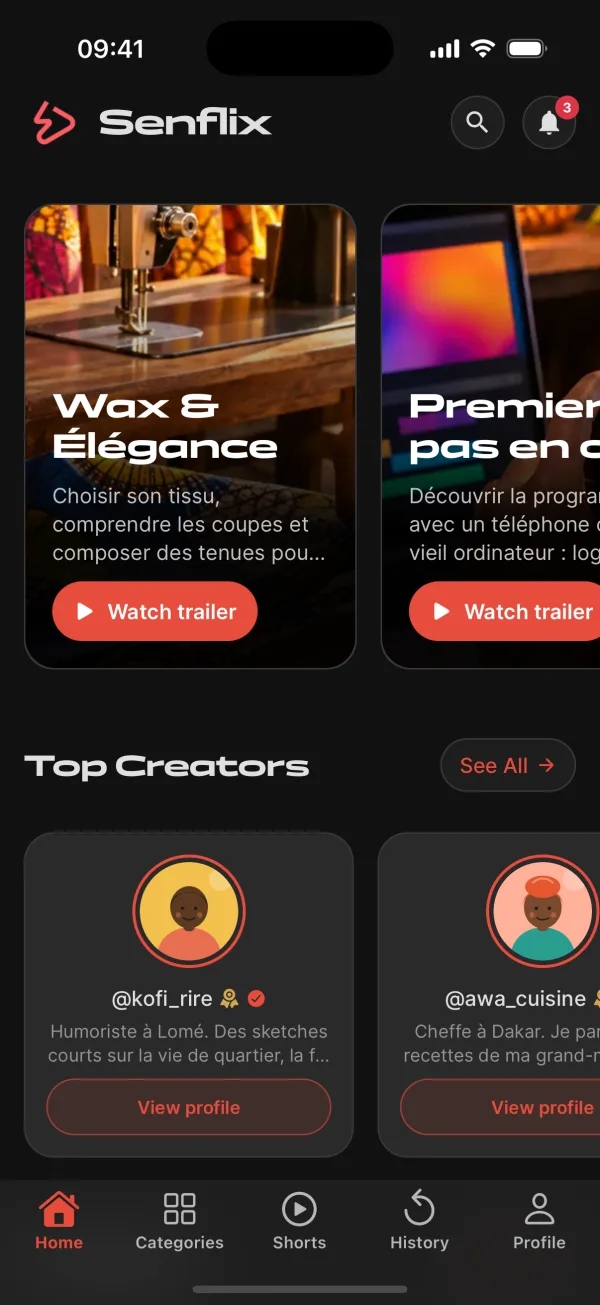
    On screen“Home”

    Your starting point, built for discovery.

    1. Search and notifications The magnifying glass to search, the bell for alerts.
    2. Recommended Featured playlists, with their trailer one tap away.
    3. Top Creators “View profile” opens a creator’s world.
    Learn more
    • Rows: Recommended, Top Creators, Playlists and Categories, each with “See More”.
    • Tabs: Home, Categories, Shorts, History (once logged in) and Profile.

    Tip. Your interests decide what you see first.

  4. 04Chapter 4 · Viewer

    Categories

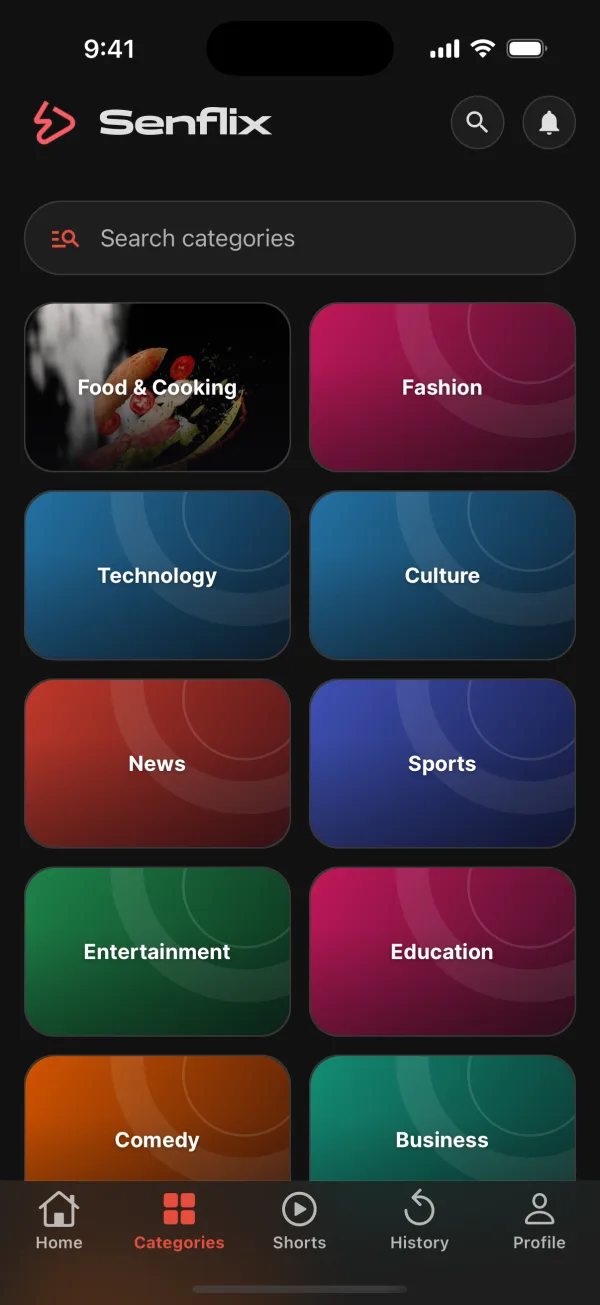
    On screen“Categories”

    Know what you’re in the mood for? Go in by topic.

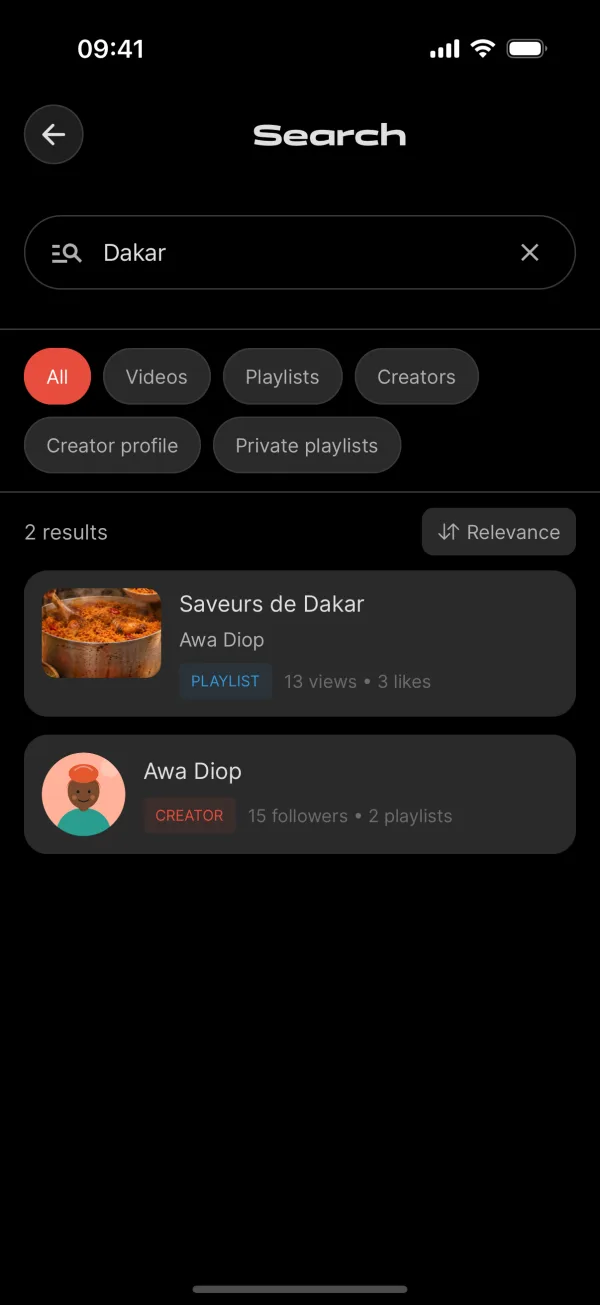
    1. Search categories Type a topic to jump straight to it.
    2. Topics Food & Cooking, Fashion, Culture, Comedy… one tap opens its playlists.
    3. Categories Always one tap away in the bottom bar.
    Learn more
    • Inside a category, “Search playlists” stays within that topic.
    • “Sort by”: Recent, Popular or Duration, whatever suits you.
    • Tap “Watch now” to open the playlist.

    Tip. Sort by Duration to find something that fits your break.

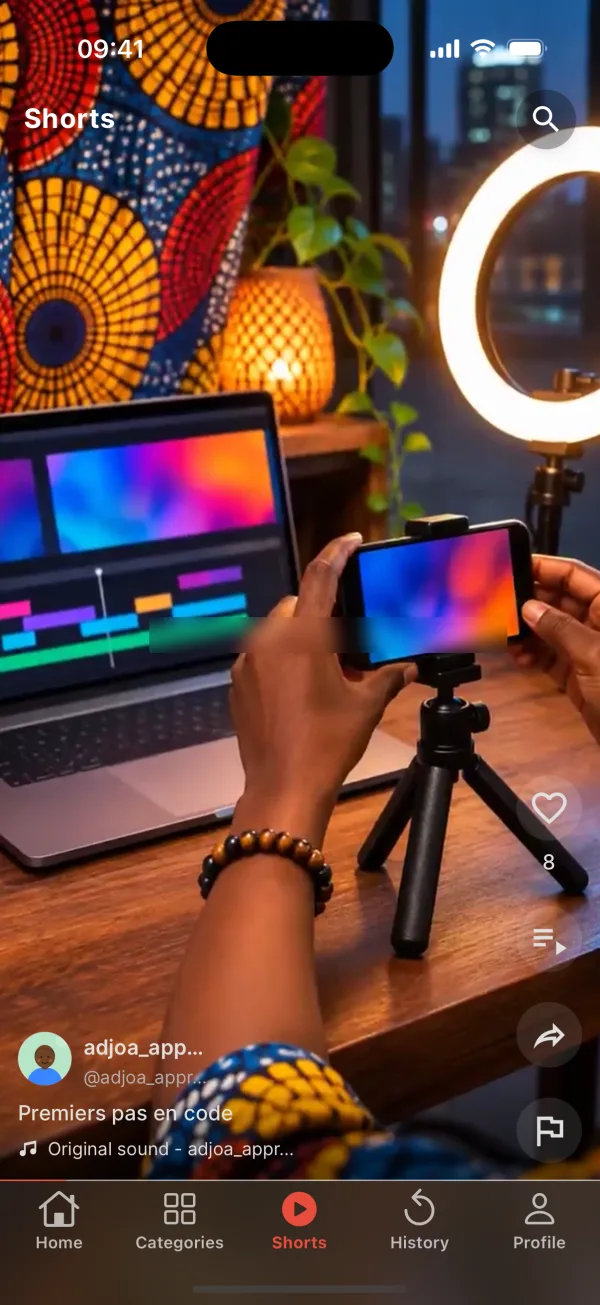
  5. 06Chapter 6 · Viewer

    Shorts

    On screen“Shorts”

    Vertical clips, each one leading to a playlist.

    1. Like A heart to cheer the creator on.
    2. Playlist The full story, or “Purchase Now” straight away.
    3. Share and report Send the Short on, or report content that’s a problem.
    Learn more
    • Swipe up for the next Short.
    • Tap the creator’s name to open their profile.
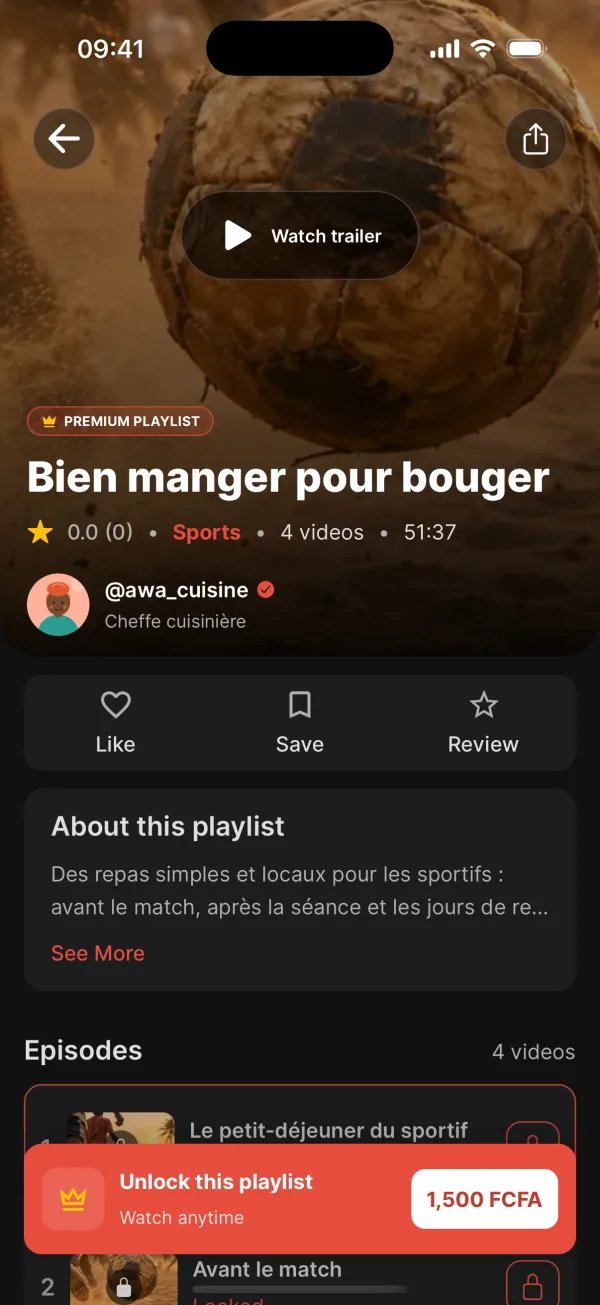
  6. 07Chapter 7 · Viewer

    Playlist

    On screen“PREMIUM PLAYLIST”

    The heart of Senflix: a complete story, in episodes.

    1. Trailer A few seconds to know if the story is for you.
    2. Unlock this playlist The price in FCFA; episodes stay locked until you buy.
    3. Like, Save, Review Star reviews open once you’ve bought it and watched it all.
    Learn more
    • A free playlist starts right away.
    • “About this playlist” describes the content and its creator.
    • Share the playlist with the icon at the top right.

    Tip. “Continue Watching” takes you back to the right episode.

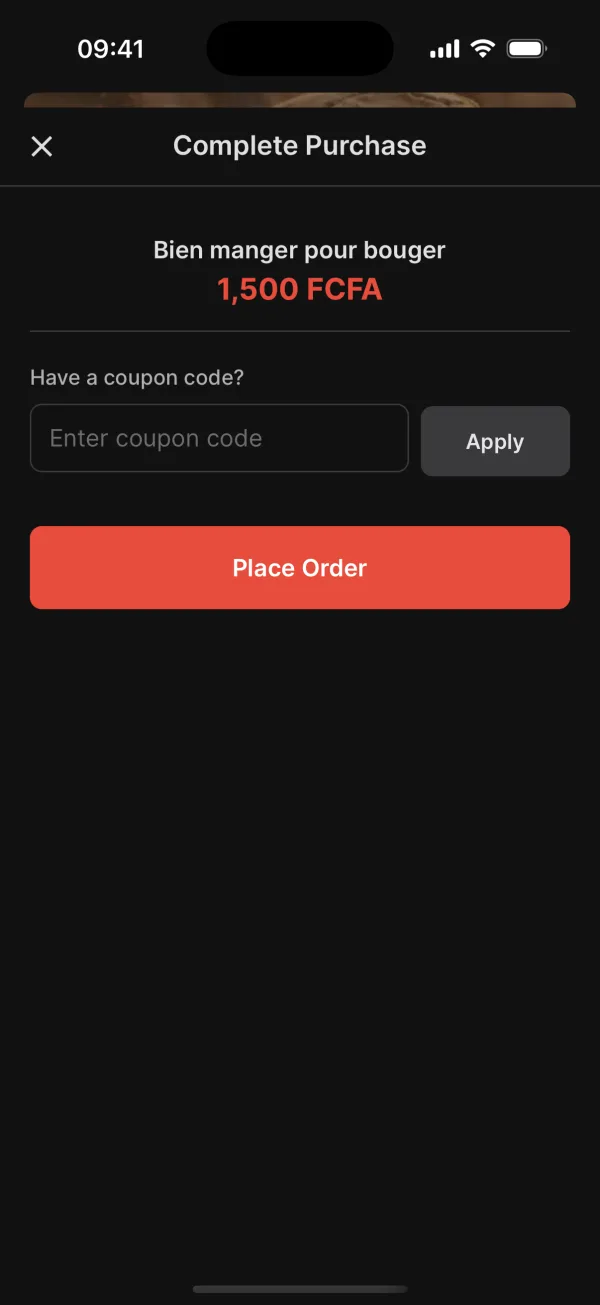
  7. 08Chapter 8 · Viewer

    Buy with Mobile Money

    On screen“Complete Purchase”

    Pay with the Mobile Money account you already use.

    1. The price In FCFA, shown before you commit to anything.
    2. Have a coupon code? A coupon, or a partner code on a first purchase.
    3. Place Order Then confirm the payment on your phone.

    Purchases are available in the countries where Senflix sells playlists.

    Learn more
    • Once paid: “Payment successful!” and the playlist is unlocked.
    • “Pay for me”: someone close gets a gift request to pay or decline.

    Tip. Payment interrupted? Your pending order is waiting in Orders.

  8. 09Chapter 9 · Viewer

    Player

    The video first, the controls right below it.

    1. Fullscreen Turn your phone and the video fills the screen.
    2. Previous and Next Move between episodes without going back.
    3. Auto and Replay Auto plays the next episode, Replay starts this one again.
    Learn more
    • Like and Share sit under the video; the rest of the playlist is under “Up next”.
    • Video quality in Preferences: Auto, 1080p, 720p or 480p.

    Tip. Low on data? Switch to 480p in Preferences.

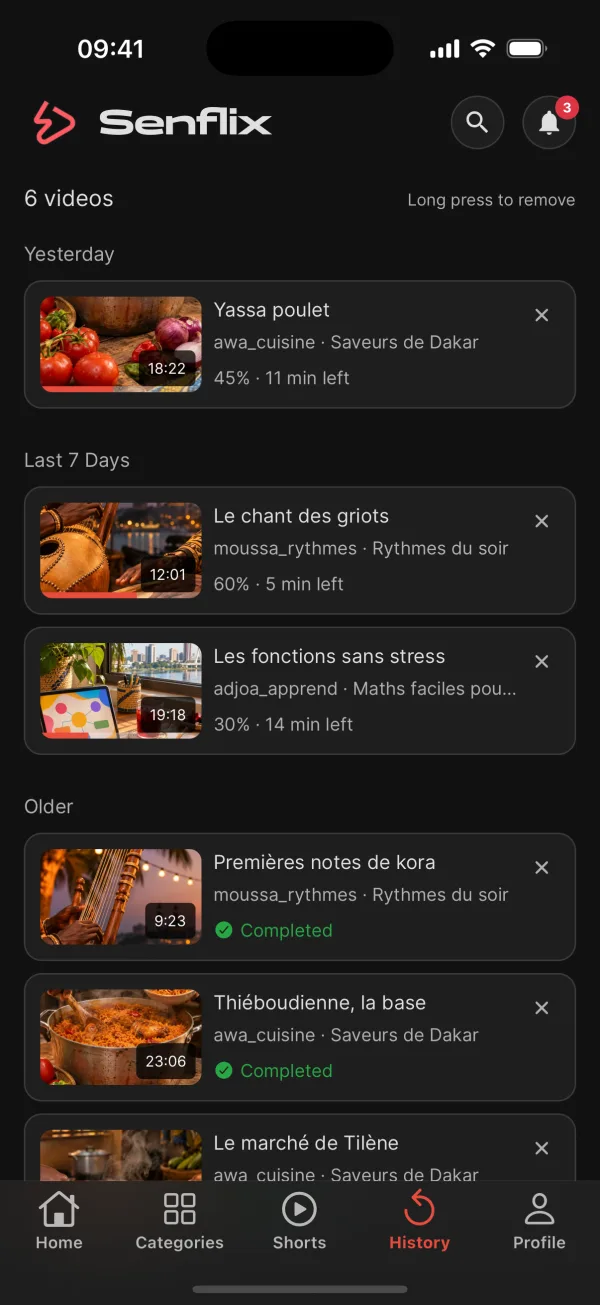
  9. 10Chapter 10 · Viewer

    History and library

    On screen“Watch History”

    Everything you’ve started, in one place.

    1. Your numbers How many videos, and how much time watching.
    2. Resume The bar shows where you are and how much is left.
    3. Long press to remove Take a video out of your history.
    Learn more
    • Your library lives in Profile: Purchases, Orders, Bookmarks and Liked.
  10. 11Chapter 11 · Viewer

    Profile and community

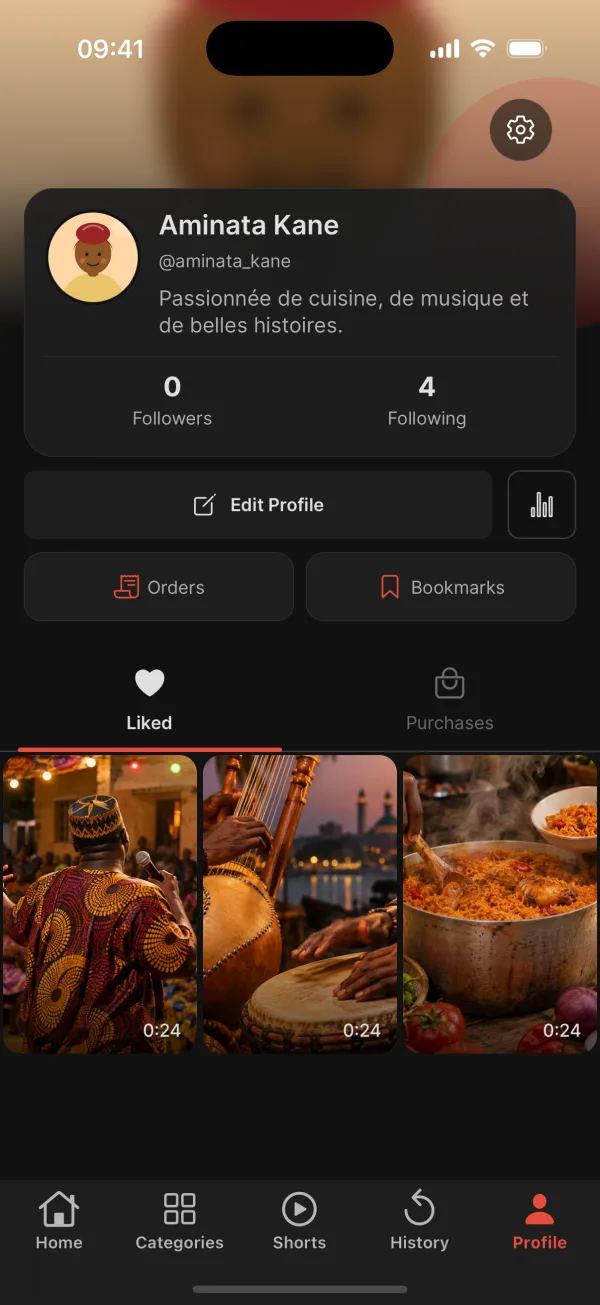
    On screen“Profile”

    Your space, the creators you follow, your settings.

    1. Followers and following Follow creators and see who follows you.
    2. Your shortcuts Orders and Bookmarks, then your Liked and Purchases.
    3. Settings Language, notifications, video quality and profile visibility.

    Deleting your account deactivates it immediately; it is permanently deleted after 30 days.

    Learn more
    • Activity: watch time, videos watched and purchases.
    • Write to a creator from their profile: a subject, a message.
    • Notifications: All or Unread, and “Mark all read” in one tap.
    • Public, Private or Followers Only profile; gift requests; blocked users.

Intermission

The life of a video

From the creator’s phone to the viewer’s, and back again as Mobile Money. Follow one video from start to finish.

  1. 01 · Creator

    The creator uploads

    From their phone or from Studio.

  2. 02 · Creator

    The video is processed

    Senflix gets it ready for every screen.

    UploadingProcessingCompleted

  3. 03 · Creator

    It joins a playlist

    With a price in FCFA, for example 1,500 FCFA.

  4. 04 · Viewer

    A viewer discovers it

    On Home, or through a Short.

  5. 05 · Viewer

    They buy with Mobile Money

    They confirm on their phone: “Payment successful!”.

  6. 06 · Viewer

    They watch

    Episode after episode, at their own pace.

  7. 07 · Creator

    Revenue updates

    The sale shows up in Revenue, commission already taken.

  8. 08 · Creator

    The creator withdraws

    To Wave or Orange Money.

The creator’s seat

Step behind the screen.

This is backstage: where stories are uploaded and priced, and where the revenue lands.

  1. 01Chapter 1 · Creator

    Becoming a creator

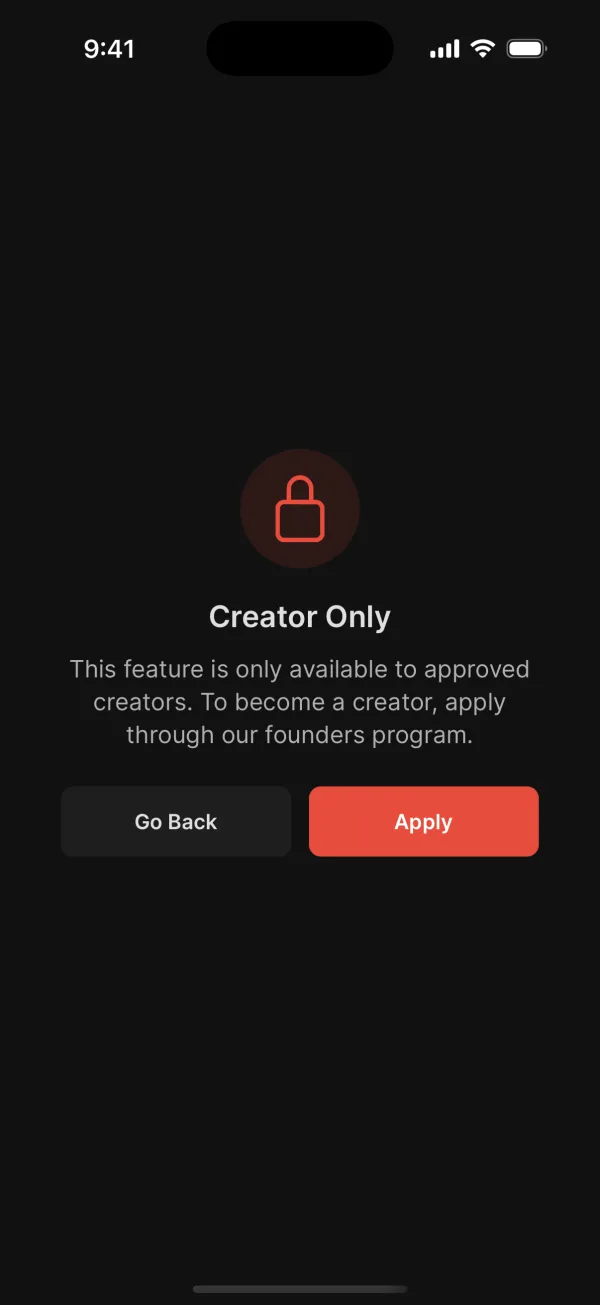
    On screen“Creator Only”

    Creators are selected: it all starts with an application.

    1. Creator Only Creator tools open once your profile is approved.
    2. Apply A 6-step application through the founding creators campaign.
    Learn more
    • No creator sign-up in the app; open to newcomers and existing accounts alike.
    • Track it online: received, under review, shortlisted, profile being validated, accepted.
    • Shortlisted: an email invites you to create your creator profile.
    • Accepted: your profile carries the “Founder Creator” badge.

    Tip. Keep your confirmation email: its reference is how you track it.

  2. 02Chapter 2 · Creator

    Upload

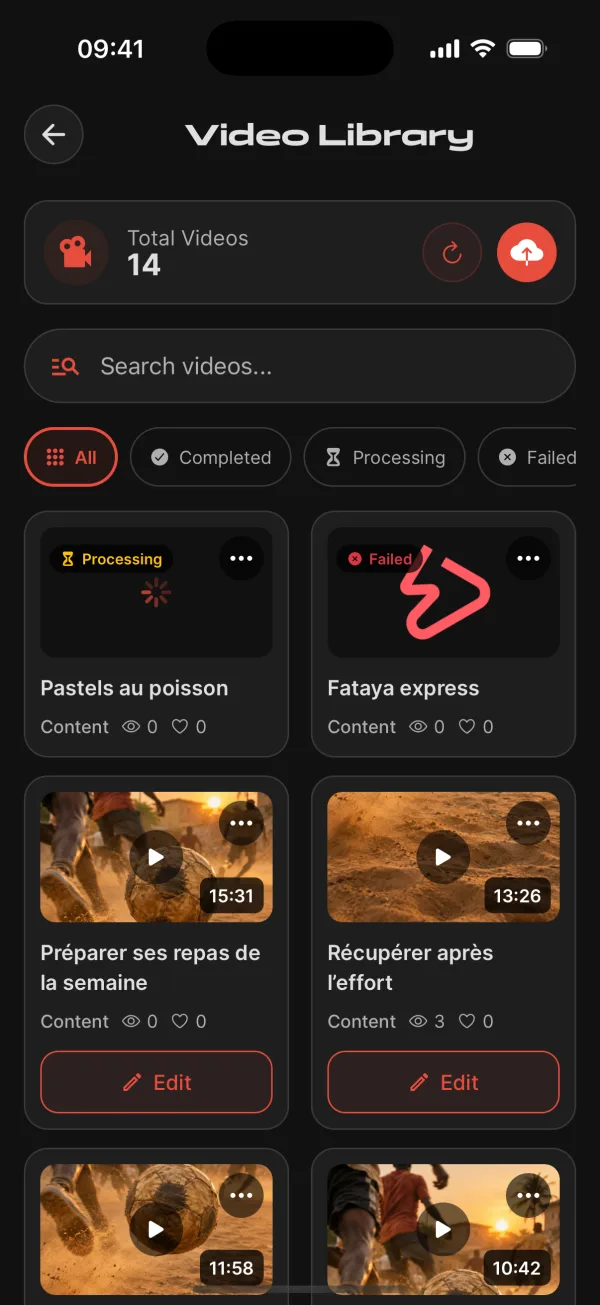
    On screen“Video Library”

    Your videos, their type and their state, at a glance.

    1. Total Videos All your videos; the red cloud starts an upload.
    2. Status Uploading, Processing, then Completed (or Failed).
    3. Type Content, Trailer (Max 60s) or Short (Max 30s).
    Learn more
    • Upload from your device, or record with the camera.
    • Shorts are filmed vertically.
    • A monthly upload quota shows how many uploads you have left.

    Tip. A paused upload resumes when you come back to the app.

  3. 03Chapter 3 · Creator

    Build a playlist

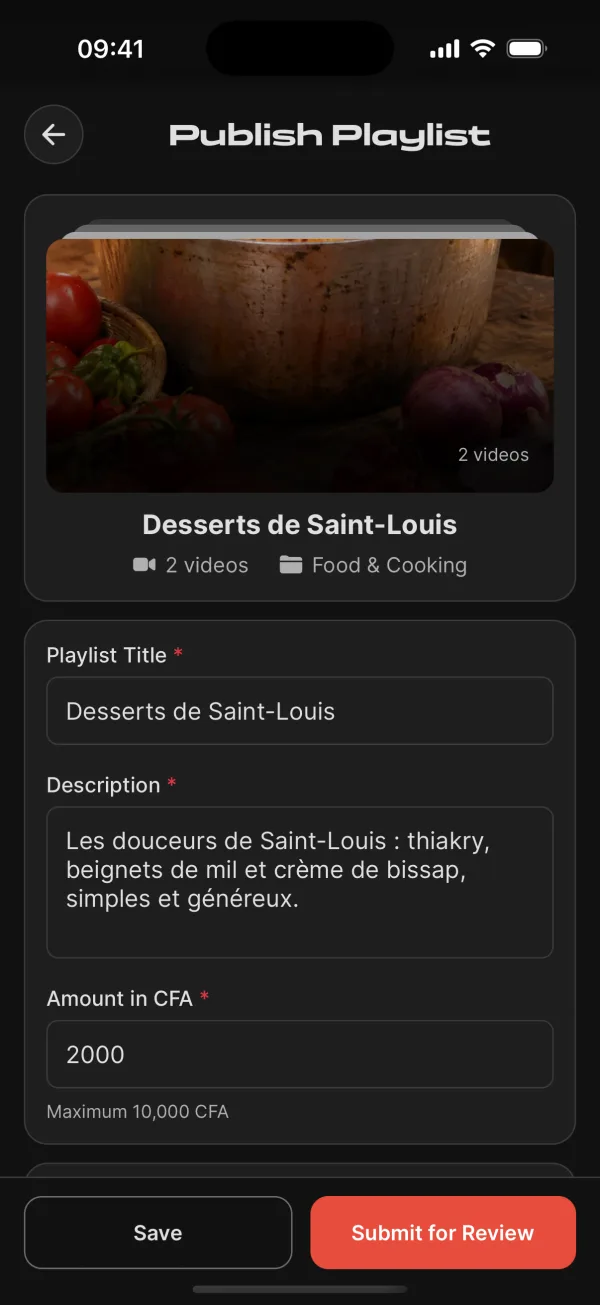
    On screen“Publish Playlist”

    Your story in episodes, ready to sell.

    1. Title and description What viewers read before they buy.
    2. Pricing The price in CFA; a playlist can also be free.
    3. Submit for Review The moderation team checks it before it goes live.
    Learn more
    • The steps: name, category and description; thumbnail, trailer and promo; pick and order the videos.
    • Add tags to help viewers find the playlist.
    • Statuses: Draft, Pending, Under Review, Published. Drafts stay in Drafts.
    • Once it’s live, tap a video to see its stats and who watched it.
  4. 04Chapter 4 · Creator

    Statistics

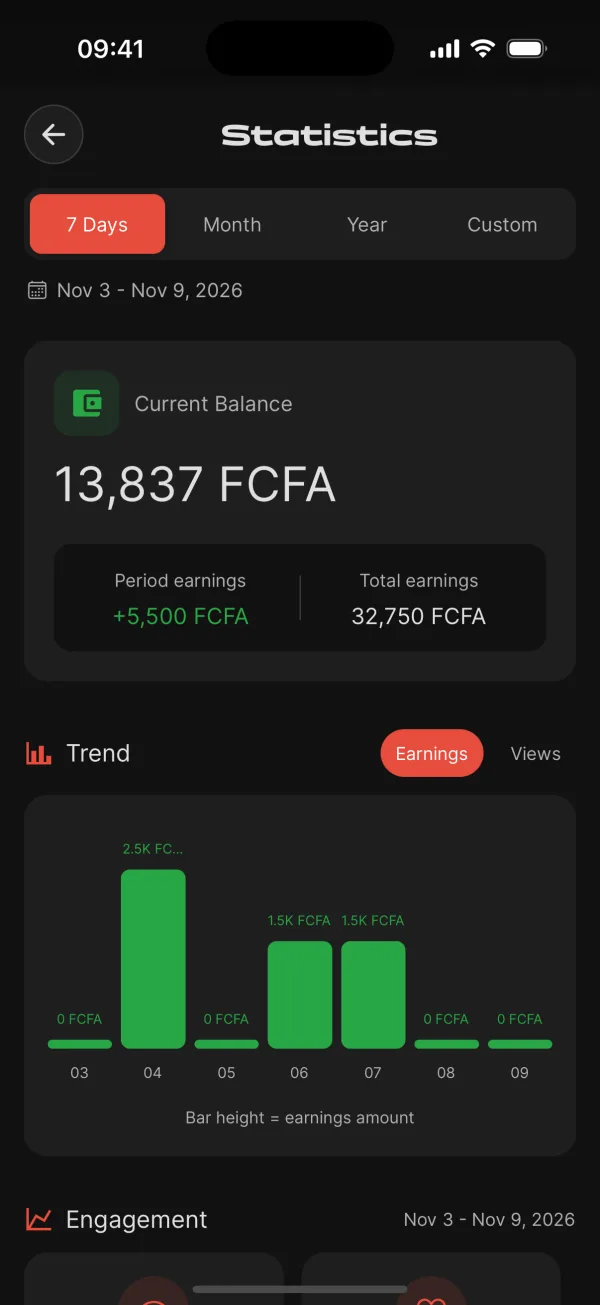
    On screen“Statistics”

    What your stories achieve, number by number.

    1. The period 7 Days, Month, Year, or dates you choose.
    2. Period earnings What the period brought in, under your balance.
    3. Engagement Watch time and full views.
    Learn more
    • Also: views, likes, shares, new and total subscribers, with a bar chart of the trend.

    Tip. Full views versus views: the best sign a story keeps people hooked.

  5. 05Chapter 5 · Creator

    Revenue

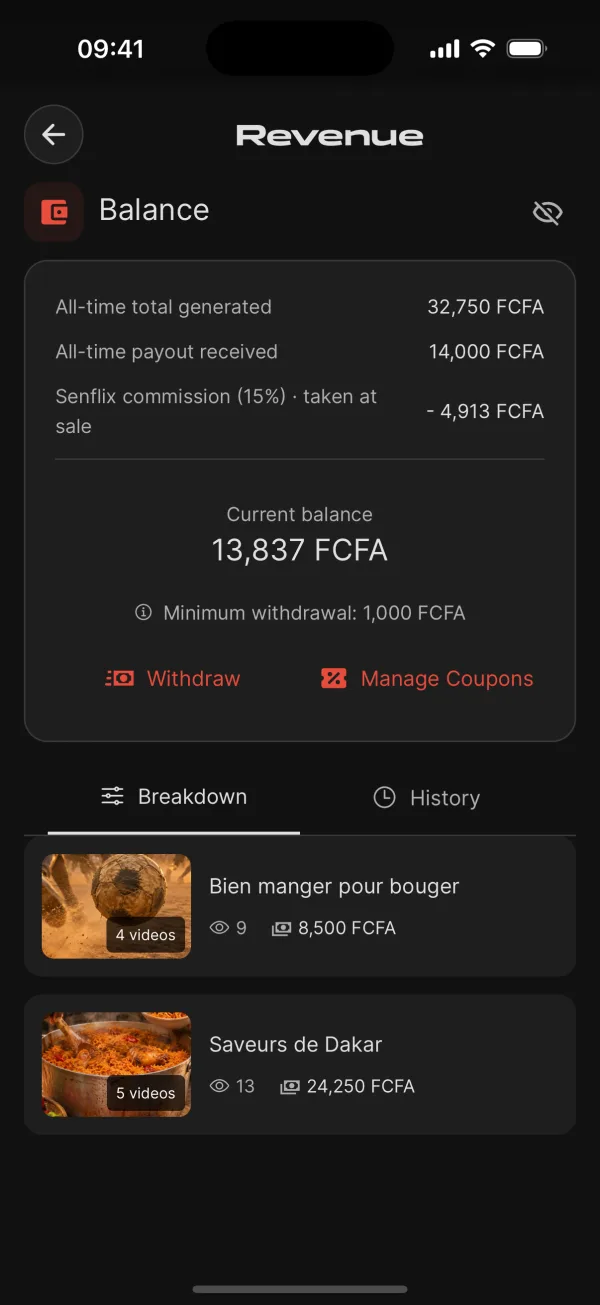
    On screen“Revenue”

    Your money, explained line by line.

    1. Current balance What you can withdraw, with the “Withdraw” button.
    2. Senflix commission Taken at each sale, not when you withdraw.
    3. Breakdown Your revenue, playlist by playlist.
    Learn more
    • Key figures: all-time total generated and all-time payouts received.
    • The History tab lists your payouts.
  6. 06Chapter 6 · Creator

    Withdraw

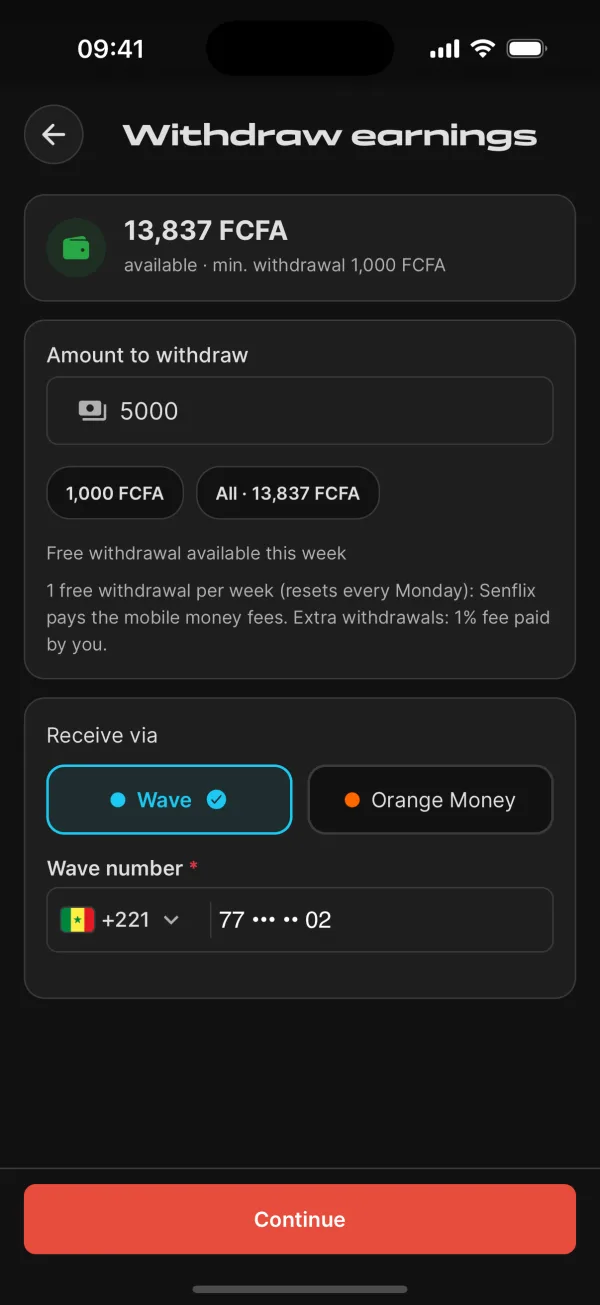
    On screen“Withdraw earnings”

    From your balance to your phone, in a few taps.

    1. Amount Enter a sum, or withdraw everything in one tap.
    2. Receive via Wave or Orange Money, then the receiving number.
    3. Free withdrawal One a week: Senflix pays the mobile money fees.

    A minimum withdrawal amount applies; the app shows it under your balance.

    Learn more
    • Check the summary, then type the code you receive to confirm.
    • The history tracks your payouts: Pending, Processing, Completed.

    Tip. Once confirmed, the transfer arrives within minutes.

  7. 07Chapter 7 · Creator

    Coupons and fans

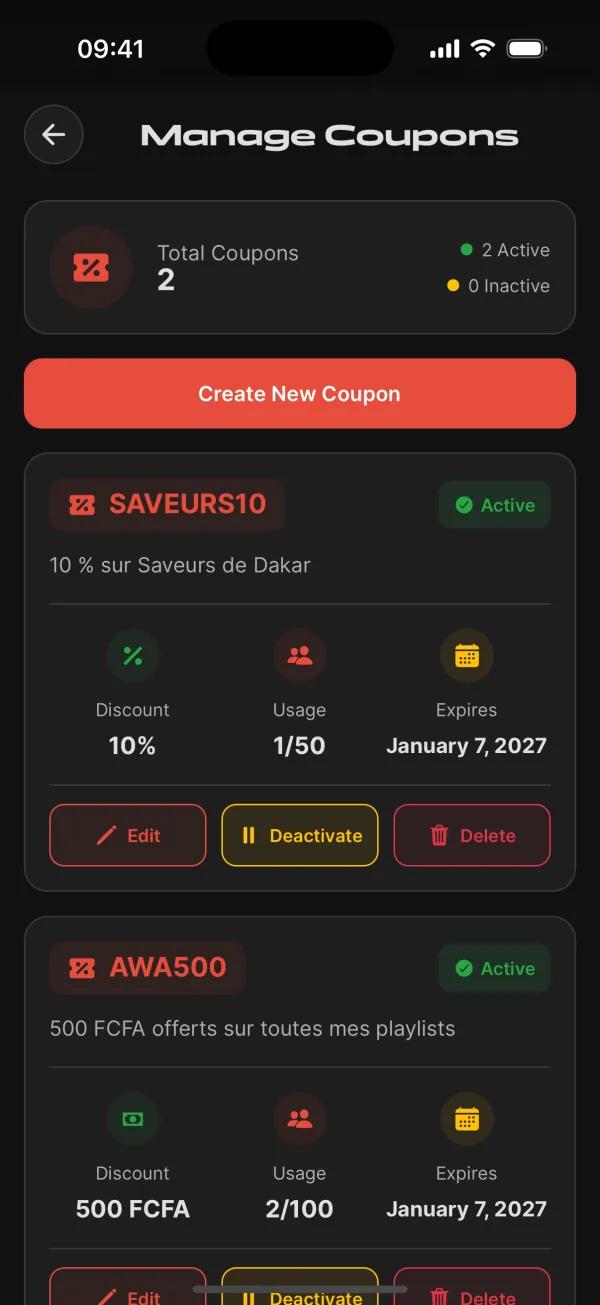
    On screen“Manage Coupons”

    Bring in new viewers, and stay close to them.

    1. The code What your viewers type in at checkout.
    2. Discount and usage Percentage or fixed amount, with a usage cap.
    3. Create Coupon With its start and expiry dates.
    Learn more
    • Turn a coupon on or off at any time.
    • Messages: reply to your fans, then close the conversation.
    • Partner programme (“Become a partner”): your code gives a discount on a first purchase and earns you a commission, tracked in the Partner area.

    Tip. Launch a coupon with every new playlist.

  8. 08Chapter 8 · Creator

    Senflix Studio, on a computer

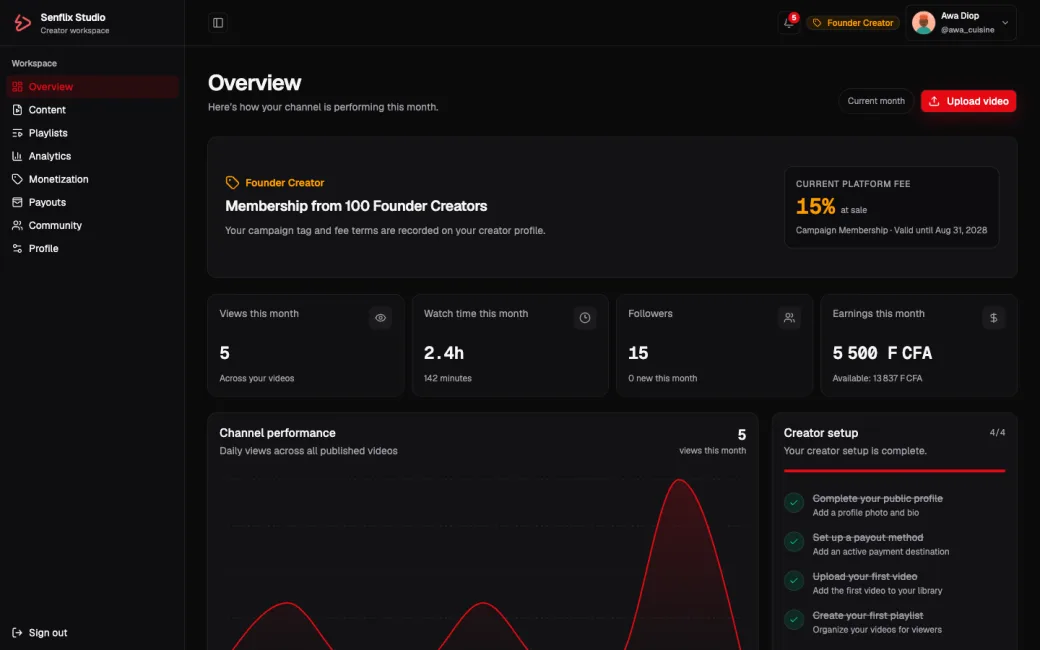
    On screen“Overview”

    The same tools on a big screen, with one-time code sign-in.

    1. The menu Content, Playlists, Analytics, Monetization, Payouts, Community.
    2. Creator setup Profile, payouts, first video, first playlist.
    3. This month Views, watch time, followers and earnings.

End of the tour

Your turn.

Download Senflix and start on Home: you don’t need an account to explore.

On iOS and Android.

Do you make videos?

Senflix is recruiting its founding creators. A 6-step application you can track online.

Join the founding creators

Any questions?

Our team answers by email. dev.support@senflix.app